How to convert HEIC to PNG
- 1Add your HEIC photos. Drop the .heic files anywhere on this page, or press Choose HEIC photos and pick several at once.
- 2They turn into PNG one by one, in your browser. The first time it takes a few seconds to get the converter ready.
- 3Download PNG, one by one or all at once. Each file keeps its name with .png at the end.
HEIC to PNG or to JPG?
PNG is lossless: every pixel stays as it was. It's the one to pick if you're going to edit the photo, put it in a design or a presentation, or upload it somewhere that asks for PNG. The catch is weight: a PNG photo is usually several times heavier than the HEIC, and heavier than a JPG.
JPG is much lighter and opens everywhere, with a difference you won't see. If you only want your iPhone photos to open on a Windows PC, use HEIC to JPG instead.
Why are iPhone photos HEIC?
Since iOS 11, the iPhone camera saves photos as HEIC (High Efficiency Image Format) by default, about half the size of a JPG. Windows doesn't open HEIC on its own: the Photos app asks for the HEIF and HEVC extensions from the Microsoft Store, and many websites and programs don't accept it. To stop new photos from being HEIC, on the iPhone go to Settings → Camera → Formats → Most Compatible.
For a few photos without a cable, our page to send photos from iPhone to PC does it with a 6-character code.
Nothing is uploaded
The photos are converted in your browser. They don't reach our servers unless you choose to save them to Colurus, so you can convert personal photos and documents.
Move photos from your iPhone to your PC often? Colurus does it without files
Colurus is a clipboard history in the cloud. Choose a photo or a screenshot on your iPhone and it's on your Windows PC, ready to copy or download. Texts and links too. It works on iPhone, Android and PC, in the browser.
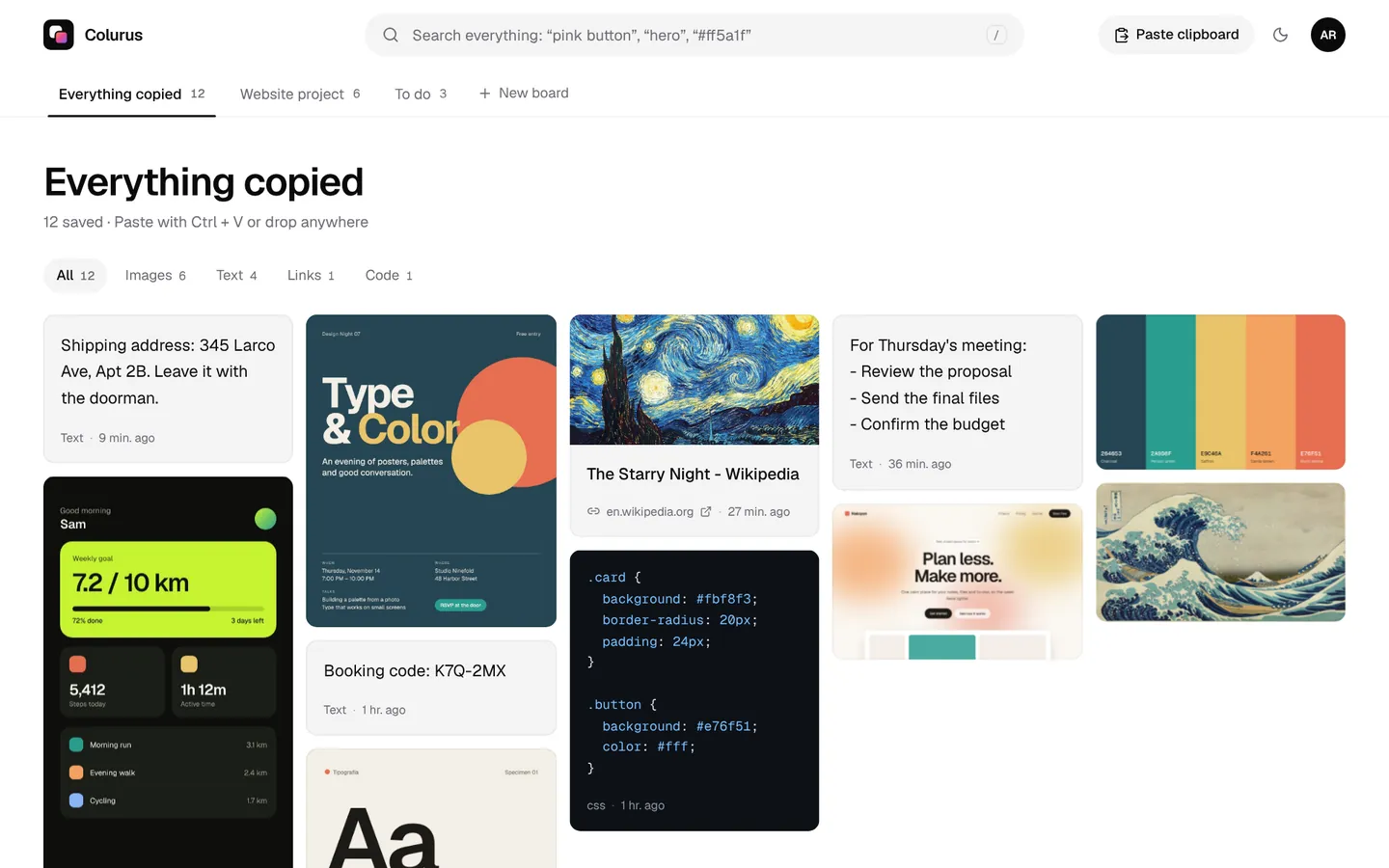
Sign in with Google. Free: 200 items, 2 boards and AI on every image you save.
Try Colurus freeYour clipboard history, in Chrome too
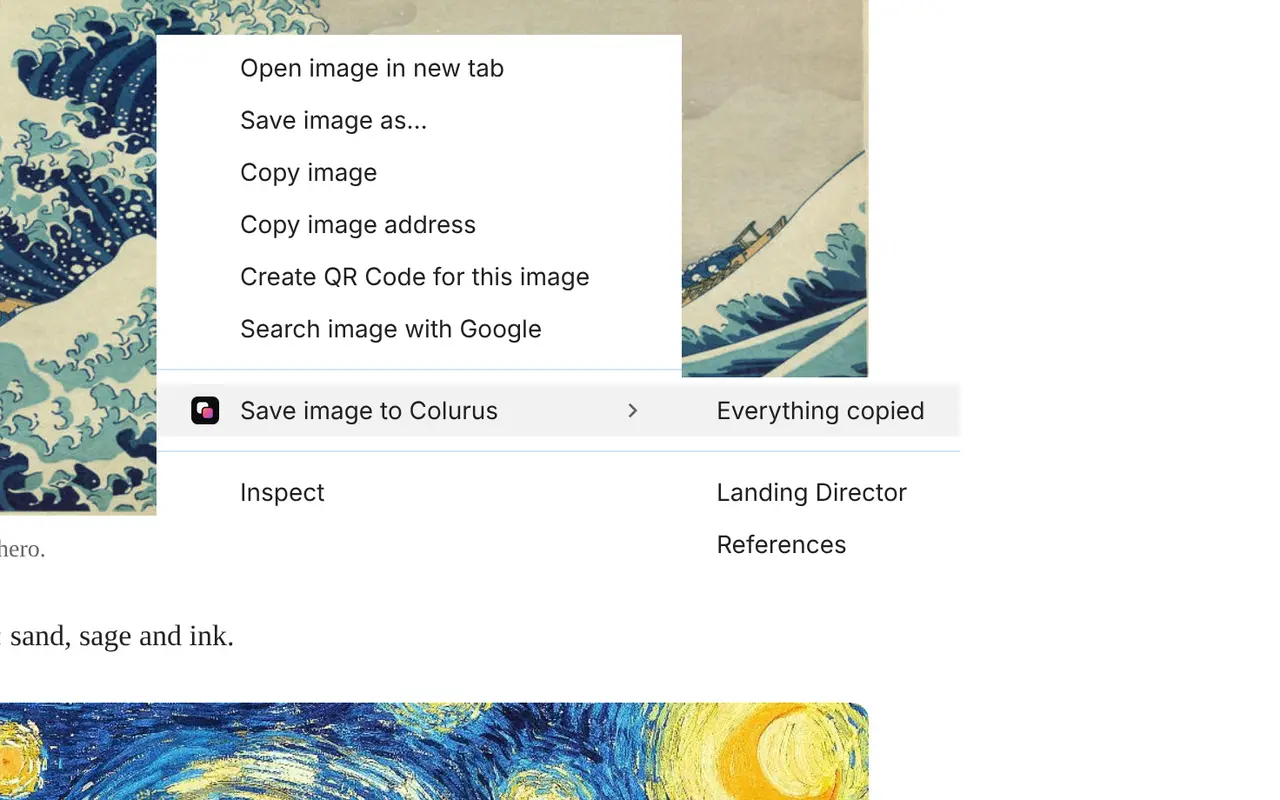
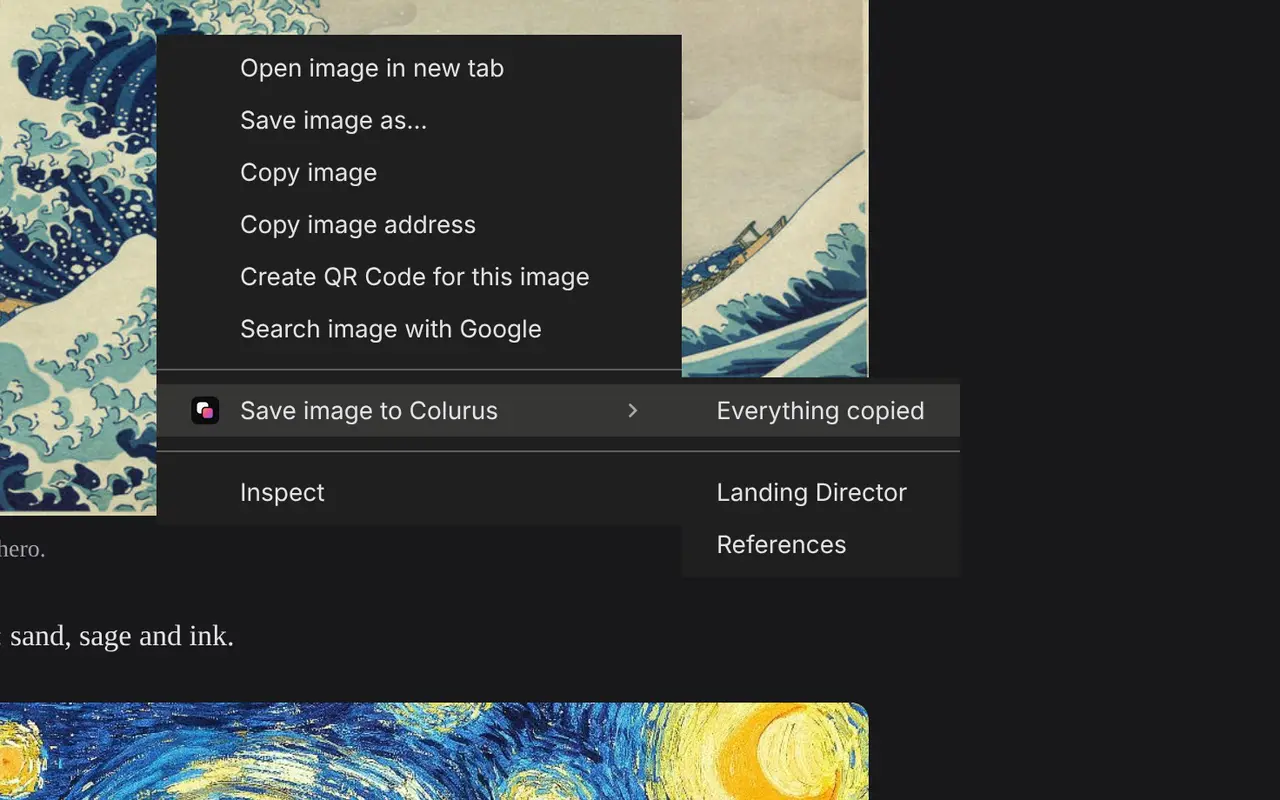
Save text, links and images from any page with a right-click, and copy them back from the popup or the side panel without leaving the tab. What you save stays in your Colurus, on your phone too.
Frequently asked questions
How do I convert HEIC to PNG?
+
Drop the .heic files on this page or press Choose HEIC photos. They turn into PNG in your browser; press Download PNG for each one, or Download all.
Does HEIC to PNG lose quality?
+
No. PNG is lossless, and the photo keeps its size in pixels. The file is bigger than the HEIC.
Should I use PNG or JPG?
+
PNG to edit or design without losing quality, or when a site asks for PNG. JPG to open, share or upload photos: it's much lighter. For JPG, use our HEIC to JPG converter.
Can I convert several HEIC photos at once?
+
Yes, up to 30 at a time. Choose or drop them together and download them all with one button.
Does it work on Windows?
+
Yes. It runs in Chrome, Edge or Firefox on Windows, with nothing to install and no Microsoft Store extensions.
Are my photos uploaded?
+
No. They're converted in your browser and stay on your device. They only leave it if you press Save to Colurus.
Is it free?
+
Yes, with no sign-up and no limit.