A clipboard manager for Chrome, with your history on every device
Save text, links and images with a right-click, and copy them back from the popup. Free.
Colurus for Chrome saves text, links and images from any page with a right-click, and keeps your clipboard history in the cloud, one click away in the popup or the side panel. What you save is also in your Colurus on the web and on your phone. Free.
Sign in with Google · Free plan: 200 items, 2 boards
What the extension does
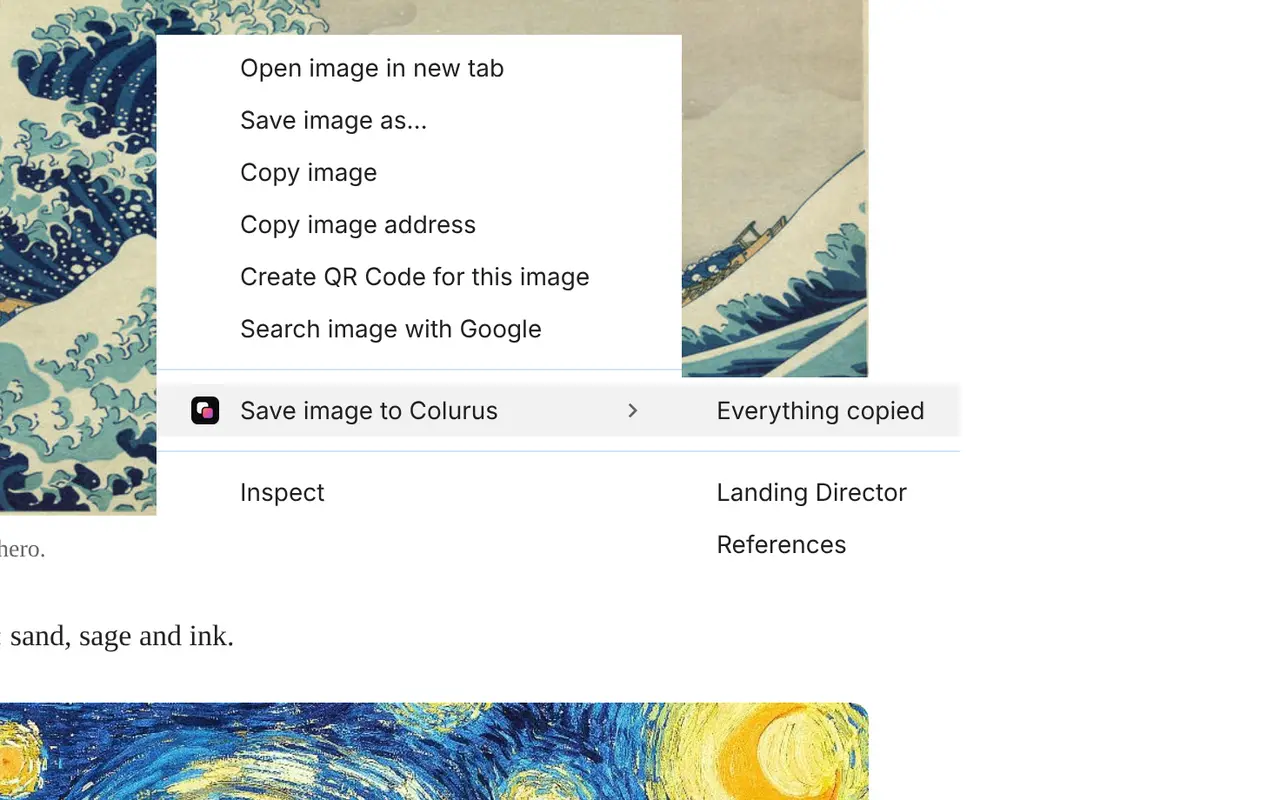
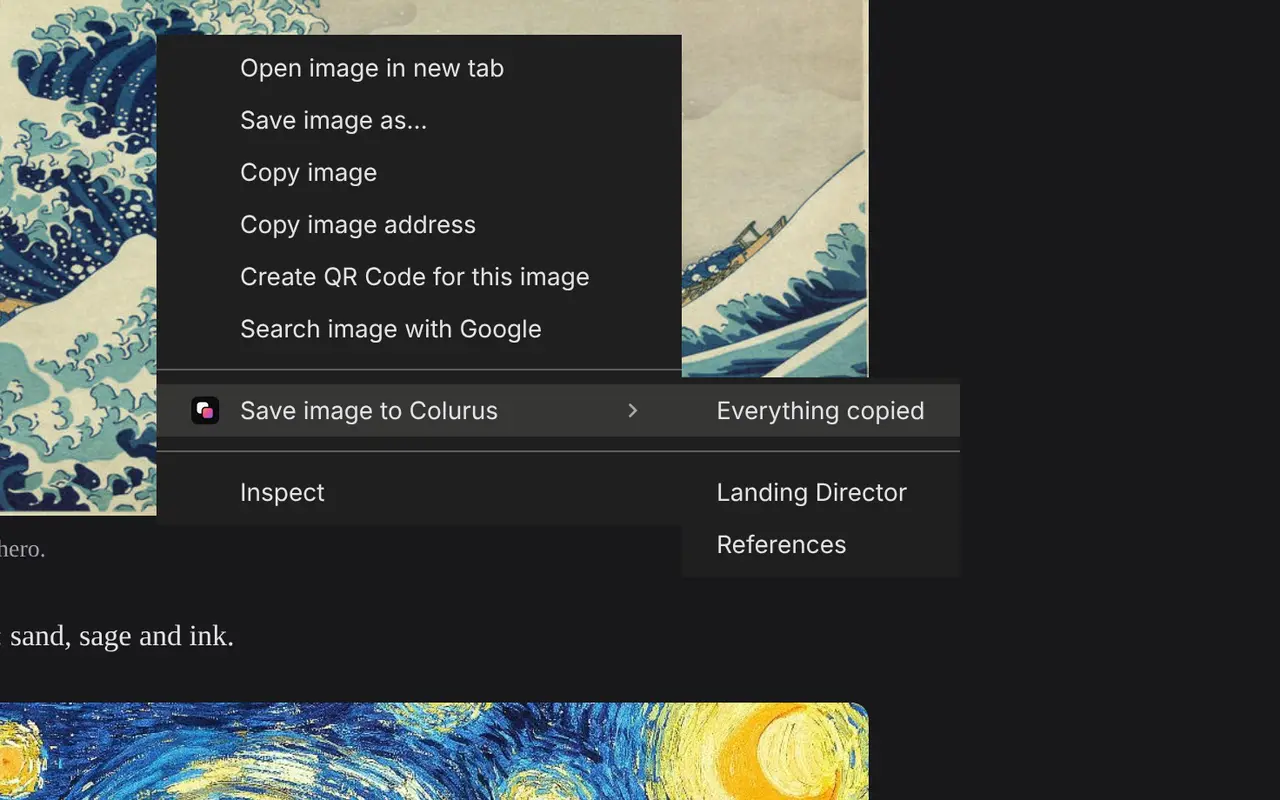
Save with a right-click
Select text, or right-click a link, an image or the page, and choose Save to Colurus. Pick a board from the same menu, or press Alt + Shift + S to save the selected text.
Your history in the popup
Click the Colurus icon to see your latest saves, search them, filter by type and copy any of them back with one click. Press Ctrl + V inside the popup to save what you copied.
A side panel that stays open
Open Colurus on the side while you browse: click a card to copy it, or drag it onto another page, like an email, a doc or a chat with an AI.
On your phone and other computers
Everything goes to your Colurus account in the cloud, so it's also at colurus.com on your phone, your laptop or your work PC, ready to copy as it was.
How to install it
1. Add it to Chrome
Open Colurus in the Chrome Web Store and click Add to Chrome. A welcome page shows you where everything is.
2. Pin it and sign in
Pin the Colurus icon next to the address bar and sign in with Google, the same account you use at colurus.com.
3. Right-click to save
Right-click any text, link or image and choose Save to Colurus. It's in your history right away, here and on your phone.
Does Chrome have a clipboard history?
No. Chrome only uses your computer's clipboard, which keeps the last thing you copied. On Windows, Win+V keeps the last 25 items until you restart (see our Win+V alternative), and on a Chromebook the Launcher + V shortcut shows the last few.
An extension like Colurus adds what's missing: a history that isn't erased, that you can search, and that goes with you to your other devices.
What the extension can read
Only what you choose to save. The right-click menu and the shortcut send what you selected to your account; nothing else on the page leaves your browser.
“Save what I copy in Chrome” is off until you turn it on in Settings, and Chrome asks for your permission first. When it's on, it saves what you copy with Ctrl + C or a site's Copy button, and it skips password and card fields. Details in the privacy policy.
Frequently asked questions
Is the Colurus extension free?
+
Yes. The extension is free, and so is the Colurus plan it uses: 200 saved items, 2 boards, 500 MB of images and AI on 10 images a day. Pro is $7 a month or $70 a year, with no limits. Nothing is deleted if you go over a limit.
Do I need an account?
+
Yes, you sign in with Google. That's what lets your history show up on your phone and your other computers.
Does it save everything I copy on its own?
+
Only if you turn on "Save what I copy in Chrome" in Settings. Then it saves what you copy with Ctrl + C or a site's Copy button. Chrome doesn't let extensions see its own "Copy image" menu, so for that, right-click the image and choose Save to Colurus.
Can I see my clipboard history on my phone?
+
Yes. Open colurus.com on your phone and sign in with the same account: everything you saved from Chrome is there to copy.
Where is my clipboard history stored?
+
In your Colurus account, in the cloud, until you delete it. It's private: someone else sees a board only if you share it as a link.
Does it work in other browsers?
+
It's built and tested for Chrome on Windows. Other Chromium browsers can install it from the Chrome Web Store, and Colurus itself works in any browser at colurus.com.
The extension is one part of Colurus
Colurus is a clipboard in the cloud with history: what you paste on one device is ready to copy on the others, and it stays until you delete it.
Your clipboard, on every device
Paste screenshots, text, links or code with Ctrl + V and copy them back exactly as they were, on your laptop, your work PC or your phone.
Moodboards that keep the colors
Group what you save into boards. Every image you paste comes with its palette, ready to copy as HEX, Tailwind or CSS.
A whole board as an AI prompt
One button turns a board into a style prompt for Claude Code, Cursor or any AI editor: colors with roles, type, spacing and mood.