How to send text from your phone to your PC (without messaging yourself)
The simplest way to send text from your phone to your PC without messaging yourself is a clipboard in the browser: paste the text on your phone, then open it on the PC and copy it. With no account, Colurus's free online clipboard does it with a 6-character code; with a free account, Colurus keeps everything you paste so you can copy it again later, on any device.
Updated · Colurus
Quick answer
| Option | On the PC | You need | Keeps a history |
|---|---|---|---|
| Online clipboard | On the PCOpen colurus.com/c, type the code, copy | You needA browser; no account | Keeps a historyNo, deleted after 24 hours |
| Colurus account | On the PCOpen Colurus and copy | You needA Google account | Keeps a historyYes, until you delete it |
| Phone Link / SwiftKey | On the PCPaste with Ctrl + V | You needA supported phone, or the SwiftKey keyboard, and a Microsoft account | Keeps a historyWin+V: 25 items, until you restart |
| KDE Connect | On the PCPaste with Ctrl + V after tapping Send clipboard | You needThe app on both, same network | Keeps a historyNo |
| LocalSend | On the PCAccept the text and copy it | You needThe app on both, same Wi-Fi; works without internet | Keeps a historyNo |
| Message yourself | On the PCOpen the chat, find the message, copy | You needWhatsApp or Telegram on the PC or the web | Keeps a historyMixed in with your chats |
Facts about each app checked on their own pages on October 9, 2026 (see Sources).
Why messaging yourself gets old
Sending a text to yourself on WhatsApp, Telegram or by email works on any phone, and that's why almost everyone does it. But every time it's the same routine: open the chat, paste, send, switch to the computer, open WhatsApp Web, find the message among your conversations and copy it. Your notes, links and passwords end up mixed with your real chats, and finding something from last week means scrolling.
The options below cut steps. None of them reads your phone's clipboard on its own (Android doesn't allow it since Android 10, except for the keyboard and the app on screen), but they get the text onto your PC with less friction.
Send text from your phone to your PC with a code, no account
For a one-off, use the free online clipboard. It runs in the browser and doesn't ask you to sign up.
- 1On your phone, open the online clipboard and paste or type your text. You get a 6-character code.
- 2On the PC, go to colurus.com/c and type the code.
- 3Click Copy next to the text and paste it wherever you need it.
One code holds up to 5 texts, links or images, and everything is deleted after 24 hours. Anyone with the code can open it, but only the browser tab that created it can add or delete things. It also works the other way: paste on the PC and scan the QR code with your phone.
Keep everything you send, with a free account
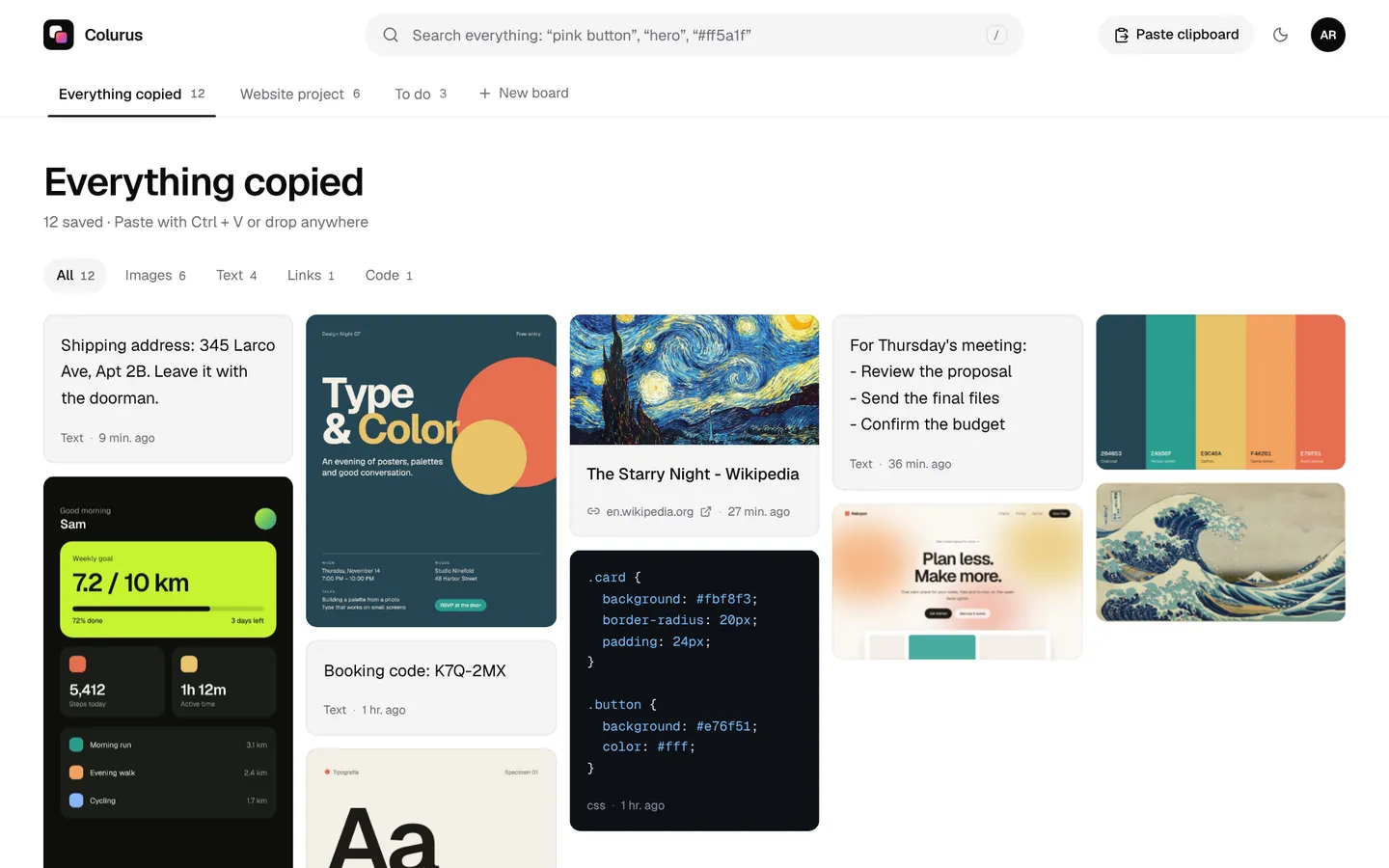
If you send text to your PC every day, an account saves you the code. Colurus is a clipboard in the cloud: what you paste stays in your account until you delete it, and you can copy it again on your phone, your laptop or your work PC.
- 1On your phone, open colurus.com and sign in with Google.
- 2Copy the text and tap Paste. It's saved.
- 3On the PC, open Colurus with the same account, or reload the page if it's already open, and click the text to copy it.
Pin what you copy often (an address, an account number), search old texts, and keep links, screenshots and code in the same place. Colurus doesn't save every copy by itself: only what you paste, so throwaway copies stay out.
Sign in with Google. Free: 200 items, 2 boards and AI on 10 images a day.
Try Colurus freeWith what Windows already has: Phone Link and SwiftKey
Phone Link copies and pastes between your phone and your PC on its own, but only with some Samsung, HONOR, OPPO, OnePlus, Realme, ASUS, vivo and Xiaomi phones. On any Android, the SwiftKey keyboard can sync your last copied text to the Windows clipboard history (Win + V) for one hour, with a personal Microsoft account. Our guide to copying and pasting between Android and Windows has the steps for both.
How to send text from your phone to your PC without internet
If there's no internet but your phone and PC share a Wi-Fi network, use an app that talks over the local network:
- LocalSend: free and open source, for Android, Windows, Mac, Linux and iPhone. You send text or files to the nearby device, which accepts them. It works with no internet connection.
- KDE Connect: free and open source. On Android 10 and later you tap Send clipboard in its notification, and the text is ready to paste on the PC.
Both need the app installed on each device. The online clipboard, Colurus, chats and email all need internet.
Send a link from your phone to your PC
A link is text, so every method above works. In Colurus, a pasted link shows the page's title and image, so you can tell links apart at a glance, and clicking it opens the page on the PC. Handy for an article you found on your phone and want to read on a bigger screen.
Which option is best?
- Once, no sign-up: the online clipboard with a code.
- Every day, and you want to find things again: a free Colurus account.
- Your phone works with Phone Link: turn on its copy and paste.
- No internet, same Wi-Fi: LocalSend or KDE Connect.
Still on Pushbullet? See our honest list of Pushbullet alternatives. Photos too, like AirDrop? See AirDrop for PC and Quick Share for Windows.
Sign in with Google. Free: 200 items, 2 boards and AI on 10 images a day.
Try Colurus freeFrequently asked questions
What's the best way to send text from my phone to my PC?
+
For a one-off, a clipboard in the browser with a code, like Colurus's free online clipboard. If you do it every day, a cloud clipboard with an account keeps everything. If your phone works with Phone Link, its copy and paste is built into Windows.
How do I send text from my phone to my PC without WhatsApp?
+
Paste it into the online clipboard on your phone, then open colurus.com/c on the PC and type the code. Or save it to a free Colurus account and copy it from there. Phone Link, SwiftKey, KDE Connect and LocalSend also work, with the limits shown above.
Can I send text from my phone to my PC online, without installing anything?
+
Yes. The online clipboard and Colurus both run in the browser on the phone and the PC. Nothing to install, and the online clipboard doesn't need an account.
How can I send text without internet?
+
With LocalSend or KDE Connect, if both devices are on the same Wi-Fi network. They send the text over your local network, not the internet.
Can I copy on my phone and have it appear on my PC by itself?
+
Only in some cases: Phone Link on supported phones, or SwiftKey for your last text. Since Android 10, other apps can't read the clipboard in the background, so you paste or tap a button.
Is it safe to send passwords this way?
+
Anyone with an online clipboard code can open it until it's deleted after 24 hours, so don't use it for passwords. What you save in a Colurus account is private to you. For passwords, a password manager is the right tool.
Is Colurus free?
+
Yes. The free plan keeps 200 items and 2 boards, with AI on 10 images a day. Pro costs $6 a month or $60 a year. The online clipboard is free with no account.
Sources
- TechCrunch (Nov 28, 2022): WhatsApp's Message yourself
- WhatsApp Help Center: WhatsApp Web
- Telegram blog: Saved Messages
- Microsoft Support: Copy and paste between your devices (Phone Link)
- Microsoft Support: Copy and paste text between SwiftKey and Windows
- Microsoft Support: Using the clipboard in Windows (Win+V)
- KDE Connect: official site
- KDE UserBase: KDE Connect (clipboard on Android 10 and later)
- LocalSend: official site
- Android Developers: Android 10 privacy changes (clipboard access)
Facts about each app checked on October 9, 2026. If something changed, tell us and we'll fix it.