Phone Link copy and paste not working: 8 fixes, and what to use instead
Phone Link's cross-device copy and paste only works with some Android phones (most Samsung Galaxy, and some HONOR, OPPO, OnePlus, Realme, ASUS, vivo and Xiaomi models), never with an iPhone. If your phone is on the list, turn it on in Phone Link → Settings → Features, make sure Phone Link is connected, and stop Android from putting Link to Windows to sleep. If your phone isn't on the list, no setting will fix it: use a clipboard in the cloud like Colurus, which works with any phone in the browser.
Updated · Colurus
Quick answer
| Problem | Fix |
|---|---|
| It never worked | FixCheck your phone is supported (an iPhone, Pixel or Motorola isn't) |
| Nothing is copied | FixPhone Link → Settings → Features → Cross-device copy and paste: on |
| It worked and stopped | FixReopen Phone Link and Link to Windows; turn off battery optimization for Link to Windows |
| Only works at home | FixAllow mobile data in Link to Windows, or keep both on Wi-Fi |
| Some things don't paste | FixOnly text and images; copy long text in parts; not from Secure Folder |
| Your phone isn't supported | FixUse Colurus, in the browser, with any phone |
From Microsoft's Phone Link support pages, checked on November 2, 2026 (see Sources). Menus can change a little between phones and app versions.
1. Check that your phone supports it
Phone Link does calls, messages and notifications with almost any Android phone, but copy and paste only with these, according to Microsoft:
- Samsung Galaxy phones with One UI 2.1 or later (like the Galaxy S21, Note20 and Z Flip)
- Some HONOR phones (like the Magic4 Pro and Magic6 series)
- Some OPPO, OnePlus and Realme phones (OPPO Find, OPPO Reno and others)
- ASUS ROG Phone 8, vivo X Fold3 Pro, Xiaomi 14T series and Surface Duo
With an iPhone, Phone Link has no copy and paste. With a Pixel, Motorola or another Android phone that isn't on the list, the option doesn't appear. In both cases skip to the alternative.
2. Turn on cross-device copy and paste
- 1On the PC, open Phone Link and click the gear icon (Settings).
- 2Go to Features → Cross-device copy and paste.
- 3Turn on Allow this app to access and transfer content I copy and paste between my phone and PC.
Copy something on the phone and press Ctrl + V on the PC. The other way, copy on the PC and paste on the phone.
3. Check that Phone Link is connected
Copy and paste only works while the phone and the PC are linked. A quick test: if your recent messages, photos and notifications show up in Phone Link, the connection works. If not, close Phone Link on the PC and Link to Windows on the phone, open both again, and check that both use the same Microsoft account.
4. Wi-Fi or mobile data
If Link to Windows can't use mobile data, copy and paste only works when the phone and the PC are both on Wi-Fi. That's why it often works at home and not elsewhere. To allow it, on most Android phones go to Settings → Advanced features → Link to Windows and turn on Use mobile data (on some phones it's Sync over mobile data). It uses a little of your data plan.
5. Turn off battery optimization
Android puts apps to sleep to save battery, and Link to Windows stops passing what you copy. In Settings → Apps → Link to Windows → Battery, choose Unrestricted or Don't optimize (the name changes by phone). On Samsung, also check that Link to Windows isn't in Sleeping apps.
6. Know what it can copy
- Only text and images. Files, contacts or anything else won't paste.
- Images over 1 MB are resized, so they arrive smaller.
- Very long text can fail: copy it in parts.
- From a Samsung Secure Folder you can't copy to the PC.
- Some apps lose the formatting of copied text.
7. Paste before you copy again
There's one shared clipboard: every copy, on the phone or the PC, replaces it on both. If you copy something on the phone and then copy something else on the PC, the first one is gone. Phone Link doesn't keep a history.
8. Update and restart
Update Phone Link from the Microsoft Store and Link to Windows from the Play Store (on Samsung it updates with the Galaxy Store). If you use Microsoft Edge, update it too. As a last step, restart the PC and try again.
If it still doesn't work: an alternative
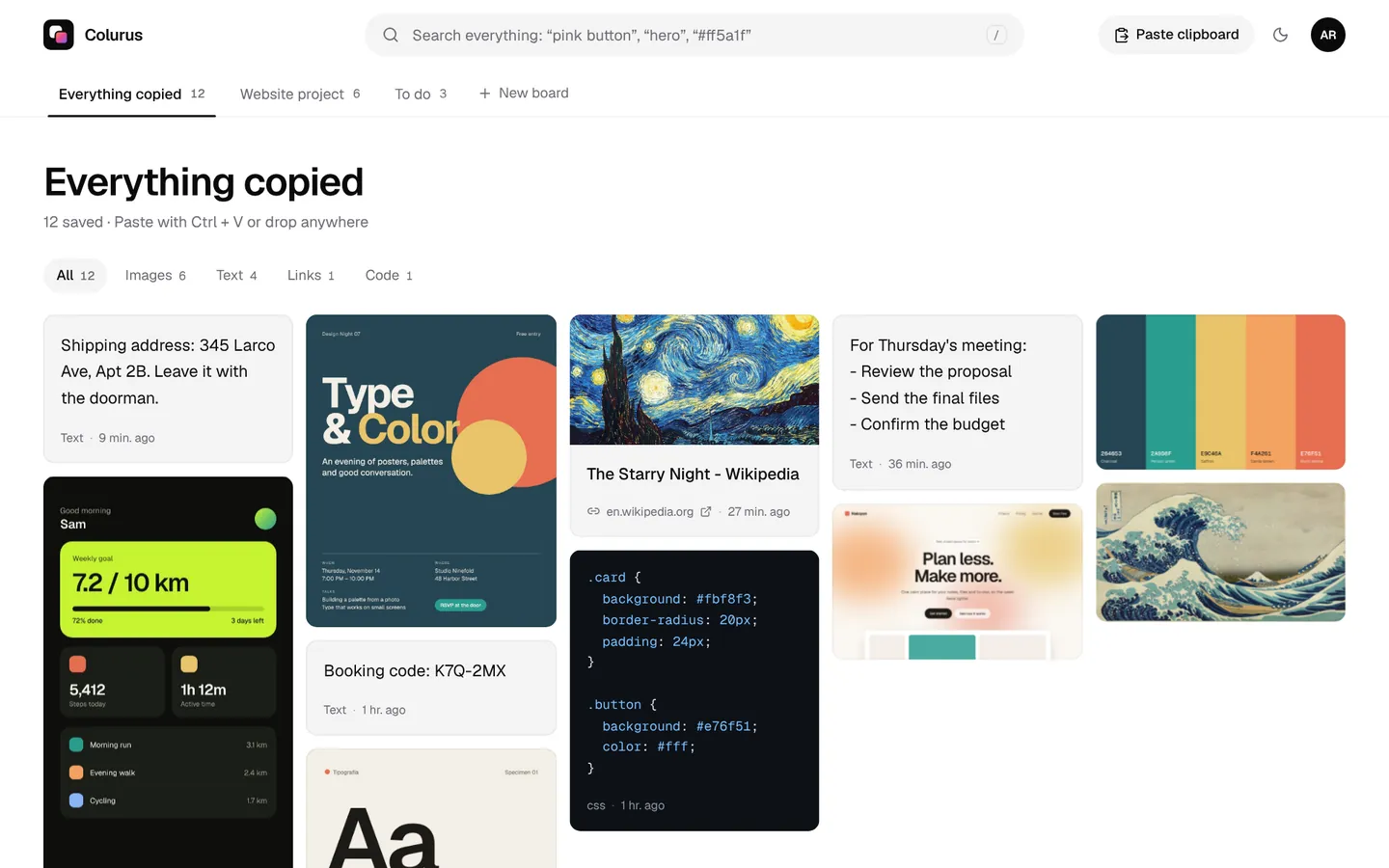
If your phone isn't supported, or you have an iPhone, you need something that doesn't depend on Phone Link. Colurus is a clipboard in the cloud that works on iPhone, Android and PC, in the browser. It's the closest thing to a universal clipboard between Windows and any phone, and it keeps what you save, so it's also a clipboard history.
- 1Open colurus.com on the phone and on the PC, and sign in with the same Google account.
- 2On the phone, copy something and tap Paste, or tap Choose image for a photo or screenshot. On Android you can also share to Colurus from any app. Phones don't let apps read the clipboard in the background, so you send each thing with one tap.
- 3It shows up on the PC right away: click it to copy it. From the PC, press Ctrl + V in Colurus and it's on the phone.
For a one-off without an account, the free online clipboard passes a text or an image with a 6-character code. Every other way, compared: how to copy and paste between Android and Windows.
Sign in with Google. Free: 200 items, 2 boards and AI on every image you save.
Try Colurus freeYour clipboard history, in Chrome too
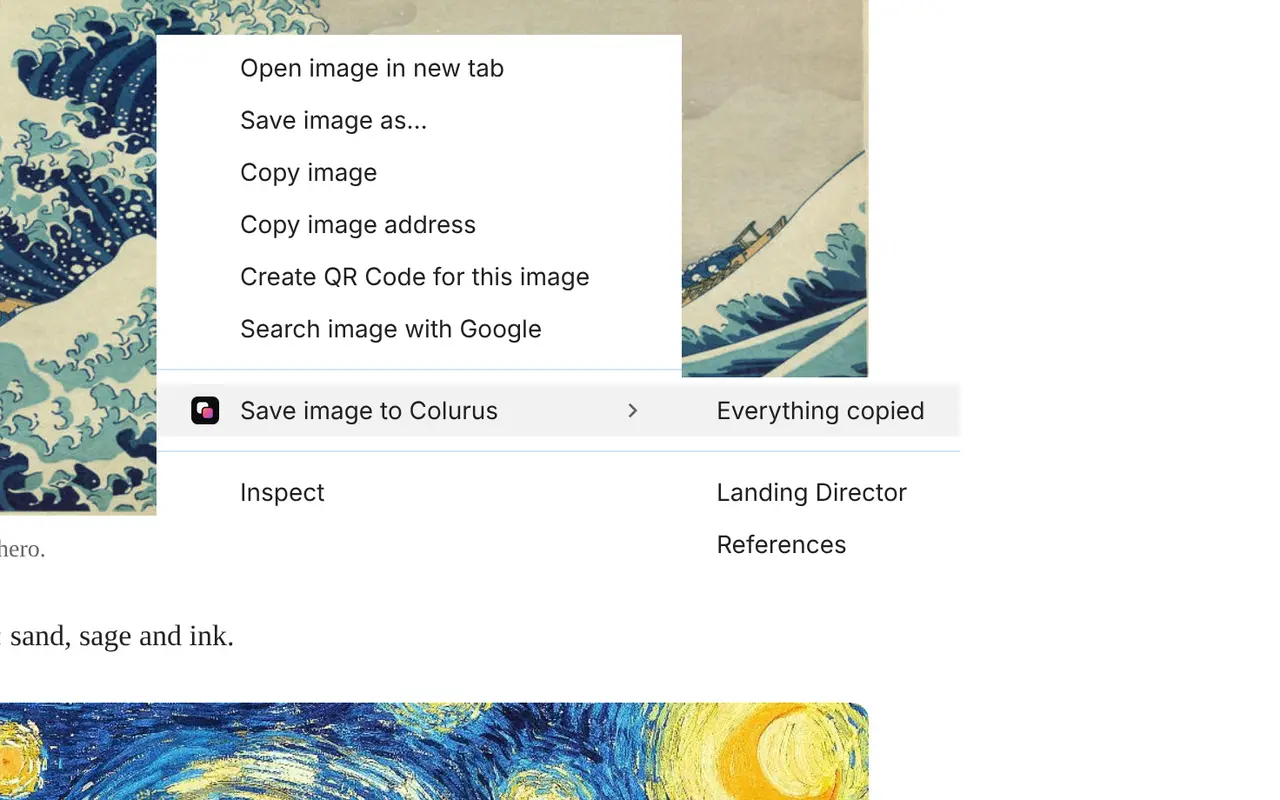
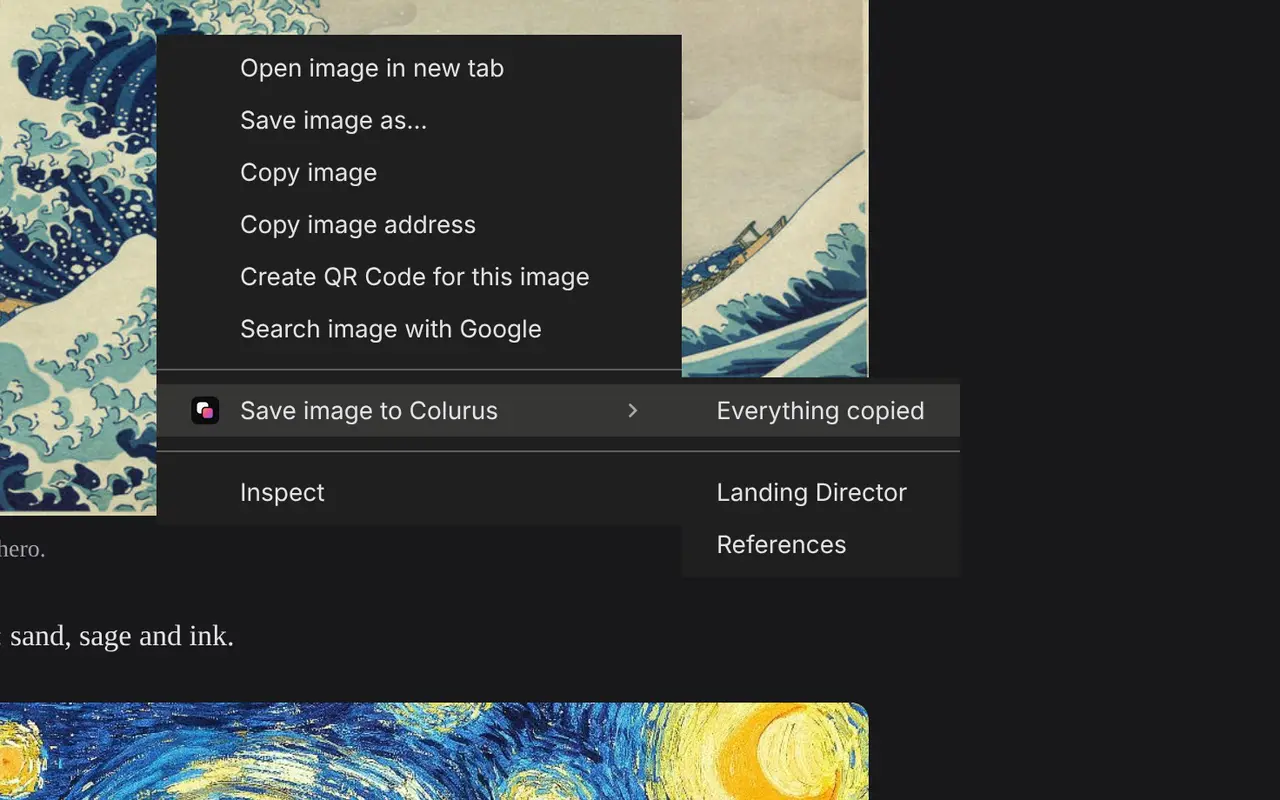
Save text, links and images from any page with a right-click, and copy them back from the popup or the side panel without leaving the tab. What you save stays in your Colurus, on your phone too.
Frequently asked questions
Why is Phone Link copy and paste not working?
+
Usually because the phone isn't supported (only some Samsung, HONOR, OPPO, OnePlus, Realme, ASUS, vivo and Xiaomi models, never iPhone), the option is off in Phone Link → Settings → Features, the phone isn't connected, or Android put Link to Windows to sleep to save battery.
Does Phone Link copy and paste work with an iPhone?
+
No. With an iPhone, Phone Link does calls, messages, notifications and sending files, but not copy and paste. Colurus does it in the browser.
Does Phone Link copy and paste work with a Google Pixel?
+
No. Pixel phones aren't on Microsoft's list for cross-device copy and paste, so the option doesn't appear. Use a clipboard in the cloud like Colurus or SwiftKey's clipboard sync.
Where is the cross-device copy and paste setting?
+
In Phone Link on the PC: the gear icon → Features → Cross-device copy and paste. If you don't see it, your phone doesn't support it.
Can Phone Link copy files or only text?
+
Copy and paste is only text and images (images over 1 MB are resized). Files go with Phone Link's file sharing, or by dragging them between the phone screen and the PC on supported Samsung phones.
Is Colurus free?
+
Yes. The free plan keeps 200 items with no time limit; Pro is $7 a month for unlimited items. It runs in the browser; you sign in with Google.
Sources
- Microsoft Support: Copy and paste between your devices (Phone Link)
- Microsoft Support: Troubleshooting Phone Link (battery optimization for Link to Windows)
- Microsoft Support: Phone Link requirements and setup
- TechCrunch (May 15, 2023): Phone Link for iOS is available to all Windows 11 users
- Microsoft Support: Copy and paste text between SwiftKey and Windows
Facts about each app checked on November 2, 2026. If something changed, tell us and we'll fix it.