Clipboard on iPhone: where it is, and how to keep a clipboard history
The iPhone has no clipboard app. iOS keeps only the last thing you copied, and you paste it by touching and holding a text box and tapping Paste (in iOS 27 the keyboard also offers it above the keys). There's no clipboard history: copy something else and the previous item is gone. To keep what you copy, and see it on your Windows PC too, save it to a clipboard in the cloud like Colurus: free, in Safari, nothing to download from the App Store.
Updated · Colurus
Quick answer
| Option | Where | History | On a Windows PC |
|---|---|---|---|
| The iPhone on its own | WhereTouch and hold a text box → Paste | HistoryNone: only the last thing you copied | On a Windows PCNo |
| Paste suggestion (iOS 27) | WhereAbove the keyboard, right after you copy | HistoryNone: only the last copy | On a Windows PCNo |
| Universal Clipboard | WhereAutomatic, between Apple devices nearby | HistoryOne item, for a short time | On a Windows PCNo: Apple devices only |
| Clipboard manager apps | WhereApp Store, with their own keyboard or Share action | HistoryYes, what they capture | On a Windows PCMost are Apple-only |
| Colurus | Wherecolurus.com in Safari, on your Home Screen | HistoryYes, until you delete it (200 items free) | On a Windows PCYes, in any browser |
Facts about iOS checked on Apple Support and in iOS 27 coverage on November 2, 2026 (see Sources). Menus can change a little between iOS versions.
Where is the clipboard on iPhone?
There's no clipboard app, folder or setting you can open on an iPhone. When you copy something, iOS keeps it in memory, and only that one thing: copy something else and the previous one is replaced. It's the same in every app, so what you copy in Safari can be pasted in Notes, Messages or WhatsApp.
To paste what's on the clipboard:
- Touch and hold a text box and tap Paste.
- Or pinch out with three fingers on the text box (pinch in with three fingers copies).
- In iOS 27, after you copy, the keyboard shows a Paste from [app] suggestion above the keys: one tap pastes it. It only ever shows your latest copy.
The first time an app reads something you copied in another app, iOS asks whether to Allow Paste. You can change it per app in Settings → Apps → the app → Paste from Other Apps (Ask, Deny or Allow).
How to see what's on your clipboard
The quickest way is to paste it somewhere harmless: open a new note in Notes, touch and hold, and tap Paste. If you want to check it often, make a shortcut:
- 1Open the Shortcuts app and tap + to make a new shortcut.
- 2Add the Get Clipboard action, then Show Result (or Quick Look).
- 3Name it “Show clipboard” and add it to your Home Screen. Tap it to see what you copied last.
It shows the current item only. The iPhone has nothing earlier to show.
Does the iPhone have a clipboard history?
No. Not in iOS 26 and not in iOS 27: the iPhone clipboard holds one item. Unlike Windows (Win + V), Android keyboards like Gboard, or a Mac with macOS Tahoe (clipboard history in Spotlight), there's no list of earlier copies to scroll, search or pin. Something you copied an hour ago and then copied over is gone.
Universal Clipboard doesn't change that. It moves your last copy to a Mac or iPad nearby, signed in with the same Apple Account, with Bluetooth, Wi-Fi and Handoff on. It keeps one item, only for a short time, and only between Apple devices: it doesn't reach a Windows PC.
That's why “iPhone clipboard history” means an extra app: a clipboard manager from the App Store (Paste is a known paid one, for Apple devices) or a clipboard in the cloud like Colurus, which also works on Windows.
Screenshots aren't copied
A screenshot on the iPhone goes to Photos, not to the clipboard. So if you take one and tap Paste somewhere, nothing happens (or an older copy shows up). To copy a screenshot:
- Right after you take it, tap the thumbnail, tap Done and choose Copy and Delete.
- Or open it in Photos, tap Share and then Copy.
In Colurus you can skip the copy: tap Choose image and pick the screenshot from your library.
A clipboard history for iPhone with Colurus
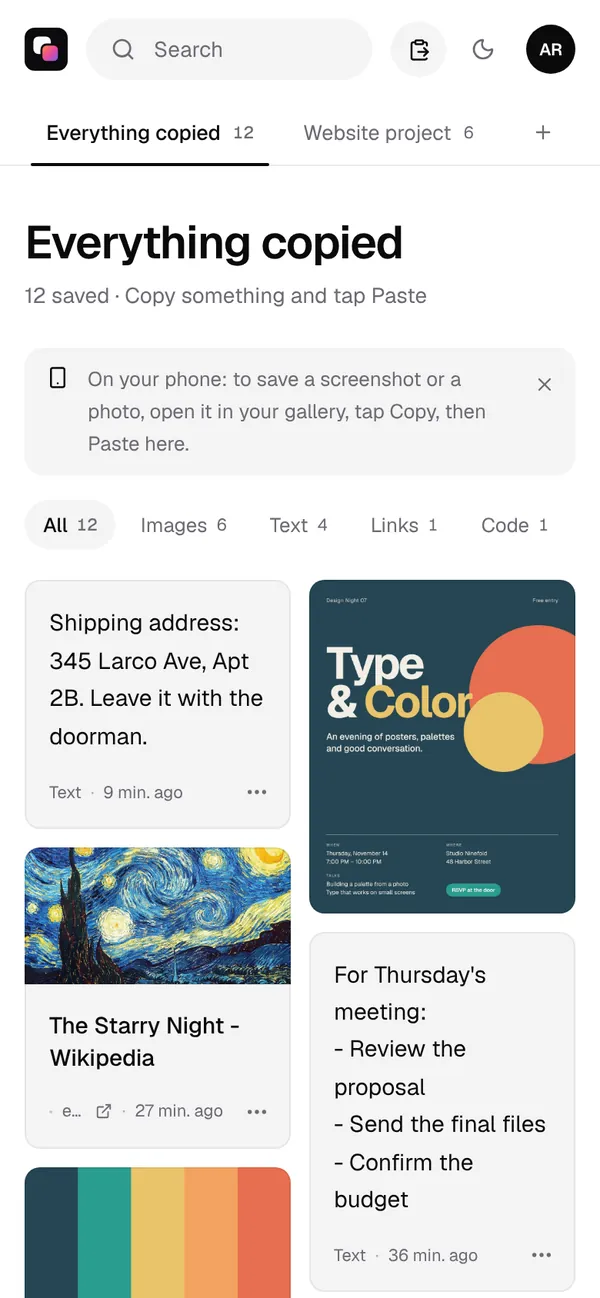
Colurus is a clipboard history in the cloud that works on iPhone, Android and PC. It runs in Safari, so there's nothing to install from the App Store. iOS doesn't let any app read your clipboard in the background, so on the iPhone you send each thing to Colurus yourself, with one tap; it stays saved until you delete it.
- 1Open colurus.com in Safari and sign in with Google. To have it like an app, tap Share → Add to Home Screen.
- 2Copy a text or a link anywhere, open Colurus and tap Paste, then the little Paste bubble iOS shows. It's saved.
- 3For photos and screenshots, tap Choose image and pick them from your library.
- 4To use something again, tap its card: a text or code is copied, a link opens, an image opens big to copy or save.
Search finds things without organizing them: AI reads the text in your screenshots and adds tags to images. What you use every day, like an address or an account number, can be pinned to the top. The free plan keeps 200 items.
Sign in with Google. Free: 200 items, 2 boards and AI on every image you save.
Try Colurus freeYour iPhone clipboard on your Windows PC
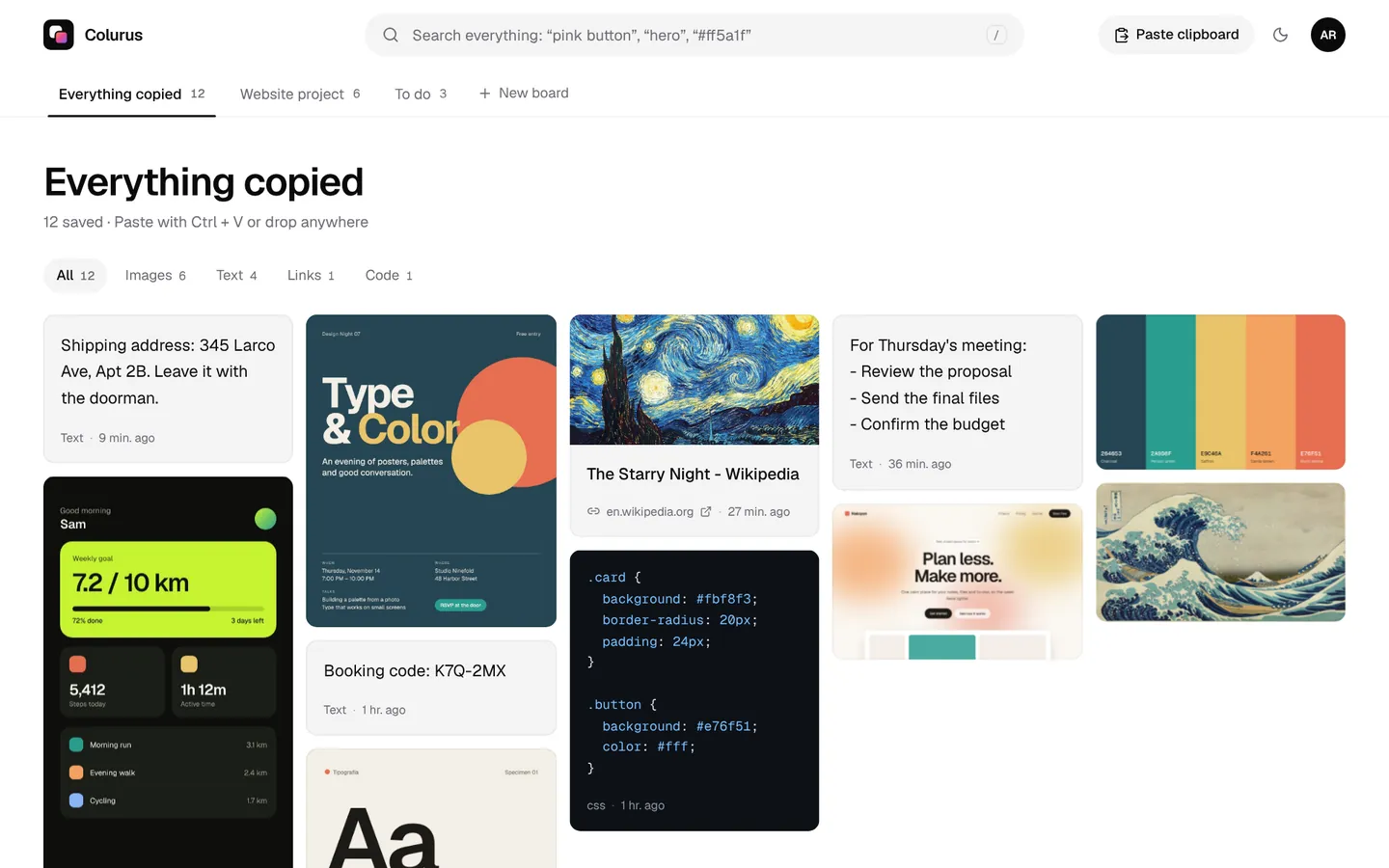
This is where Universal Clipboard stops and Colurus keeps going. Open colurus.com on your Windows PC with the same Google account and everything you saved on the iPhone is there, ready to copy with a click. It works the other way too: press Ctrl + V on the PC, and on the iPhone tap the card to copy it. It's the closest thing to a universal clipboard for Windows and iPhone, and to sync the clipboard between your iPhone and PC without cables.
Just once, without an account? The free online clipboard sends texts and images from one device to another with a 6-character code, and there's a page to send photos from iPhone to PC.
Which one should you use?
- Paste something you just copied: touch and hold → Paste, or the suggestion above the keyboard.
- Copy on the iPhone, paste on your Mac or iPad: Universal Clipboard.
- Keep texts, links and screenshots, find them later and have them on a Windows PC: a free Colurus account.
On Android the history lives in the keyboard: see clipboard history on Android. On Windows it's Win + V; see how it compares in our Win+V alternative page.
Sign in with Google. Free: 200 items, 2 boards and AI on every image you save.
Try Colurus freeYour clipboard history, in Chrome too
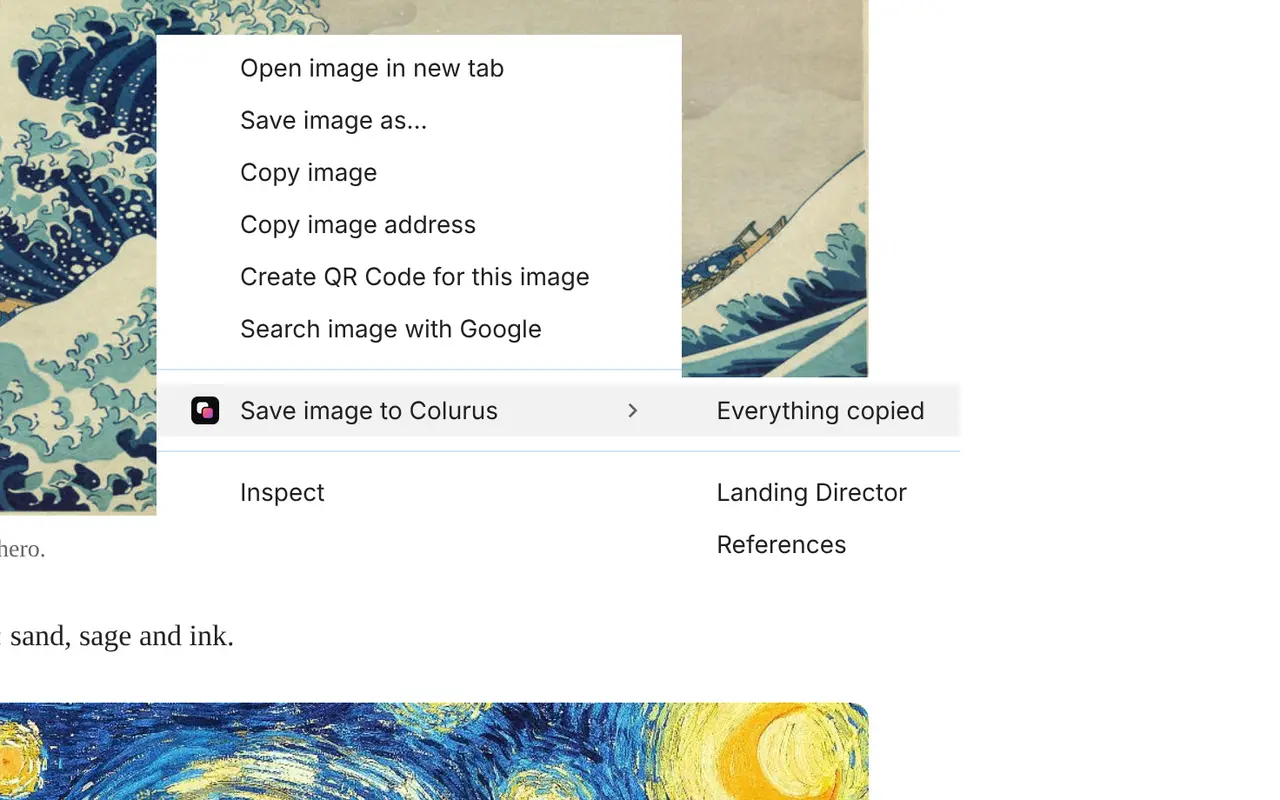
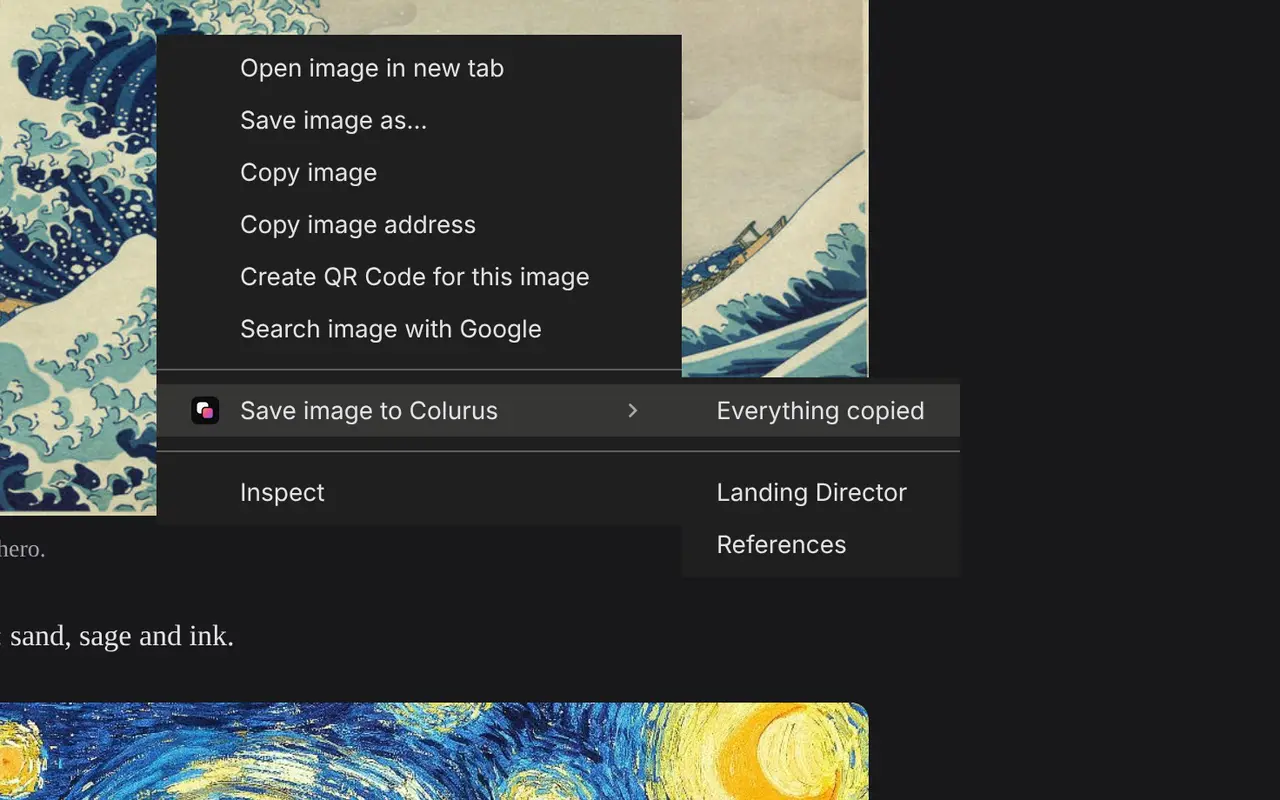
Save text, links and images from any page with a right-click, and copy them back from the popup or the side panel without leaving the tab. What you save stays in your Colurus, on your phone too.
Frequently asked questions
Where is the clipboard on my iPhone?
+
There's no clipboard app or setting. iOS keeps only the last thing you copied, in memory, and you paste it by touching and holding a text box and tapping Paste. In iOS 27 the keyboard also suggests it above the keys.
How do I see my clipboard history on iPhone?
+
The iPhone doesn't keep one: it holds a single item, and copying something new replaces it. You can see the current item by pasting it into a note or with a Shortcuts shortcut (Get Clipboard + Show Result). For a real history you need an app or a cloud clipboard like Colurus.
Can I get back something I copied earlier?
+
Not once you've copied something else. iOS doesn't save earlier copies. To keep things, save them as you go, for example to Colurus, where they stay until you delete them.
Is there a clipboard manager app for iPhone?
+
Yes, in the App Store (Paste is a known paid one, for Apple devices). They can't read your clipboard in the background either: they use their own keyboard, a Share action or you open them after copying. Colurus works in Safari with no App Store download, and also on Windows and Android.
Can I copy on my iPhone and paste on a Windows PC?
+
Not with Universal Clipboard, which only works between Apple devices. With Colurus, paste it on the iPhone and it's on colurus.com on your PC, ready to copy. Once and without an account, the online clipboard does it with a code.
Is Colurus free?
+
Yes. The free plan keeps 200 items with no time limit. It runs in the browser on iPhone, Android and PC; you sign in with Google.
Sources
- Apple Support: Select, cut, copy and paste text on iPhone
- Apple Support: Universal Clipboard
- MacRumors (Jul 1, 2026): iOS 27 adds a paste suggestion above the keyboard
- Paste (a paid clipboard app): the iPhone has no built-in clipboard history
Facts about each app checked on November 2, 2026. If something changed, tell us and we'll fix it.